Harmos family · Available now
Column Design
Column schedules with rigorous shear & torsion, an in-built AI agent, and an instant section viewer — straight from your ETABS model.
The concept
The same hub workflow, applied to columns — with a dedicated design step for what ETABS cannot do.
Rigorous shear & torsion
A dedicated design step covers column torsion — which ETABS cannot design — with the same solve-for-θ interaction approach as Beam Design.
In-built AI agent
Ask the model anything — it knows every column in your project.
Section viewer
Instant section diagrams at every position, so errors surface before issue.
User Interface
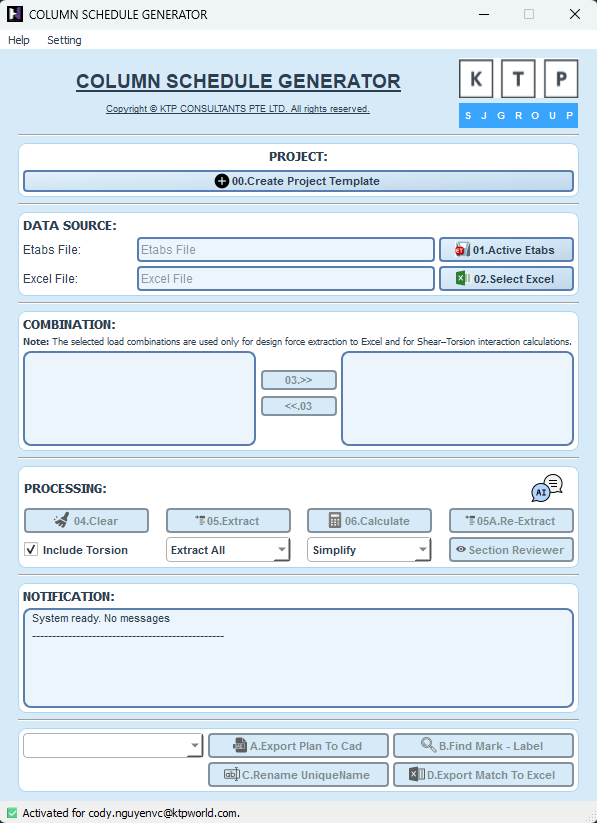
The main window — same layout logic as Beam Design.
Watch it work
The full run, then the highlight — exactly as presented in the sharing session.
Quick start
Three steps, same for every tool in the family.
-
Get your licence
Help → License → Request Access. Outlook opens a ready-made email — add your name and team, then send. After approval, enter that same email, press Activate License (once per machine), then Log In. One licence covers the family.
-
Prepare the ETABS model
Run both the analysis and the concrete design in ETABS before you start. If the tool doesn't detect ETABS, use Tools → Set as active instance for API in ETABS.
-
Follow the numbered buttons
The main window is designed to be followed top to bottom — buttons unlock in order. Watch the Main workflow video above for a full run.
Part of the Harmos family — see all tools.